Sharing | TSMaster MBD Engineering Build and Analysis Guide

In the field of automotive electronics development, model-based design is increasingly becoming a mainstream development paradigm due to its advantages of high efficiency, high integration and ease of verification. As a bridge between the model and the physical world, TSMaster's MBD function module plays a crucial role. It seamlessly integrates MATLAB/Simulink models into the bus network environment, enabling engineers to validate control models in real time on a real hardware-in-the-loop test bench, or to participate in the whole network simulation as a virtual ECU. In this paper, we will deeply analyze the building process and core functions of MBD project in TSMaster.

Keywords:TSMaster, MBD


  1. Basic concepts of MBD
    Model-Based Design (MBD) is a software engineering methodology that uses a model-centered approach in the design, development, and validation of complex systems.MBD provides an innovative approach to mathematizing and visualizing the development of complex systems through the use of mathematical models to describe the behavior and properties of the system.
  2. TSMaster MBD Module
    TSMaster Model Block Diagram Module is a Simulink-like modeling module developed by Tongxing Intelligence, which is used to support Model-Based Development (MBD) mode, construct system models by dragging and dropping modules and connecting signal lines, and support continuous-time, discrete-time and hybrid system simulation. The currently released module features include the following:
  1. Rich Module Library: Contains predefined modules in the fields of mathematical operations, signal processing, control systems, communication systems, and so on;
  2. Hierarchical modeling: supports the creation of hierarchical models through subsystems; can combine multiple modules into subsystems; supports multi-level subsystem nesting; can create conditional execution subsystems (enable, trigger, etc.);
  3. Simulation function: support the parallel operation of subsystems with different sampling rates; automatically handle the signal transfer between modules with different rates;
  4. Deep integration: data can be read directly from TSMaster system variables; simulation results can be exported to mbd files for analysis; relevant functions in the model block diagram can be called to operate on TSMaster;
  5. MIL, SIL, HIL are supported;
  6. Support directly load Simulink sldd, slx and other files simulation
technical articles 20250828 1 TSMaster MBD

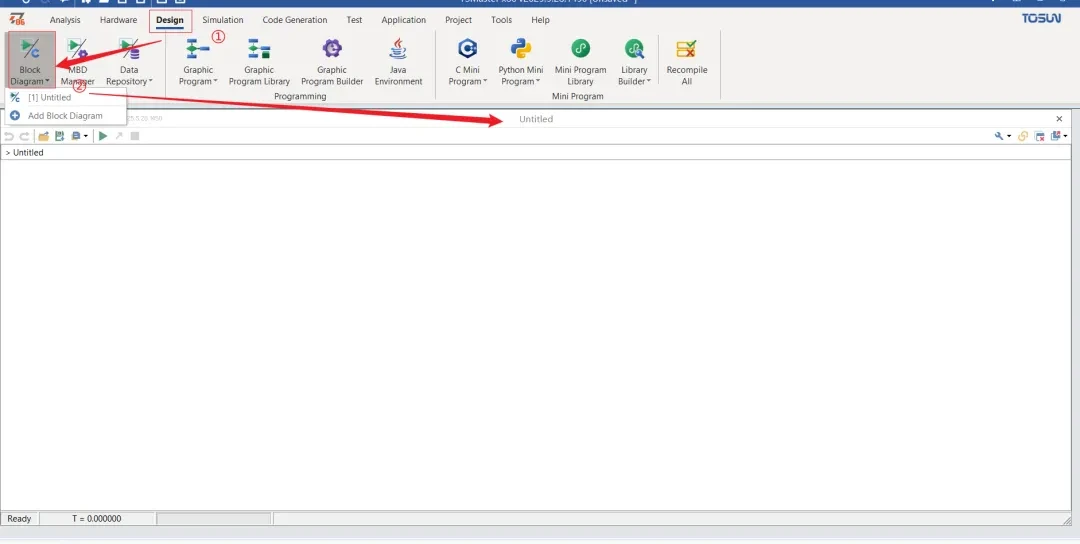
Below is a detailed step-by-step guide demonstrating how to build a complete MBD project from scratch.

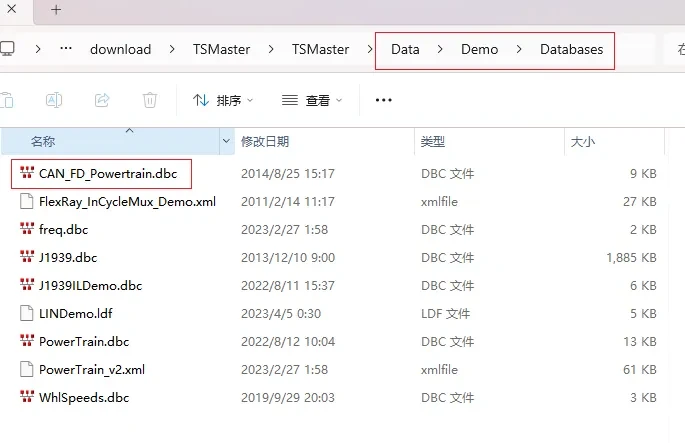
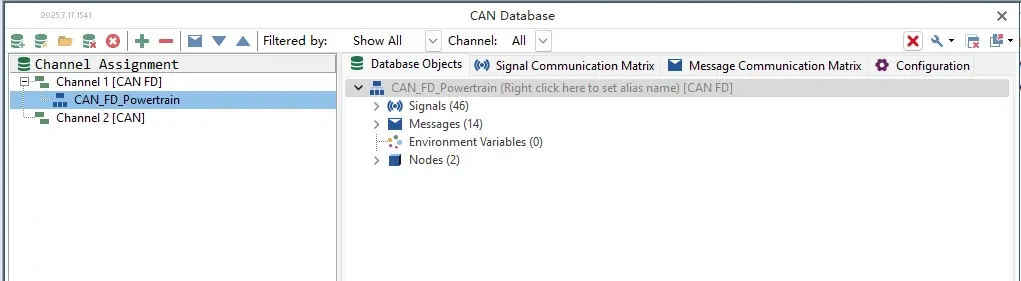
The database used in this article is the database CAN_FD_Powertrain.dbc located in the folder \Data\Demo\Databases under the installation path of TSMaster. It is located in the folder \Data\Demo\Databases under the TSMaster installation path:

technical articles 20250828 31 TSMaster MBD

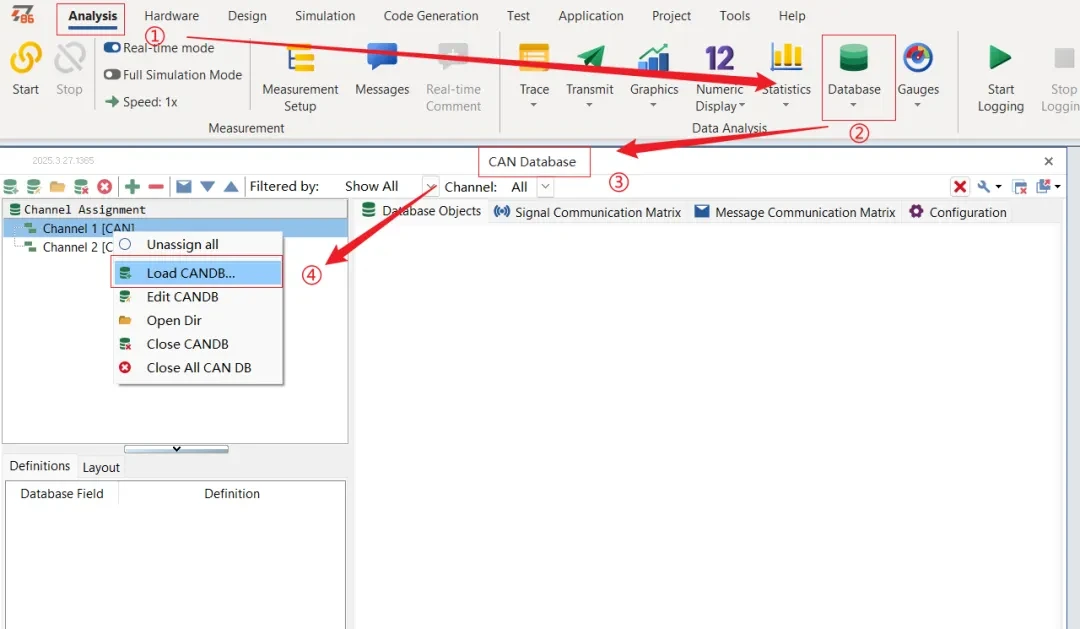
Demo database from the CAN database into TSMaster and activate the CAN bus simulation for use in subsequent signal mapping.

technical articles 20250828 32 TSMaster MBD

1. Variable preparation

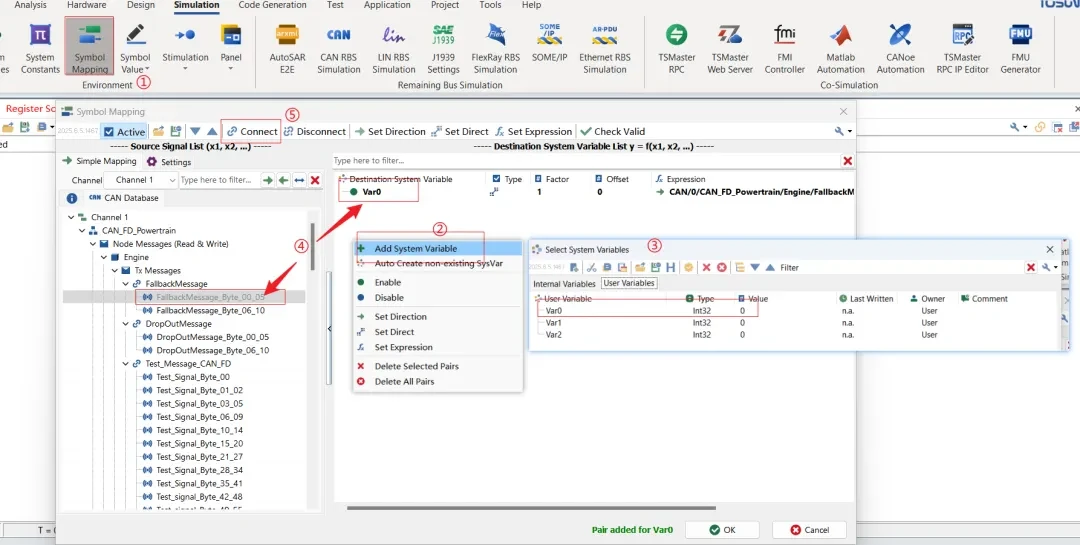
Add CAN database and system variables, and set the mapping direction of signals and system variables in CAN data to bidirectional transmission, so as to facilitate the subsequent modification of the value of system variables to control the changes of CAN signals.

technical articles 20250828 33 TSMaster MBD

2. Project construction

2.1 Signal Input

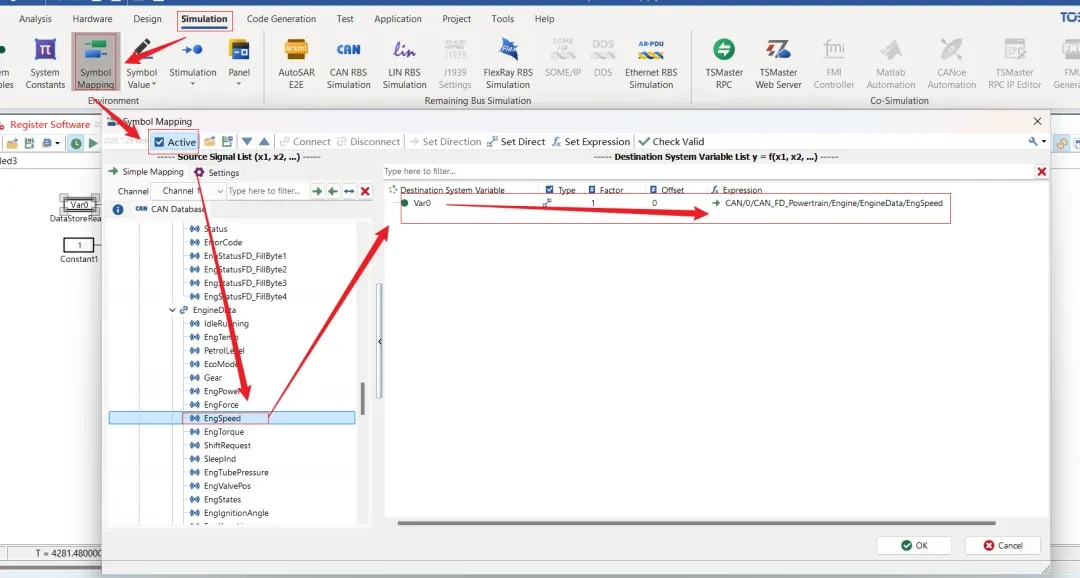
Add the database in TSMaster beforehand. (Note: You cannot select a signal with a maximum and minimum value of 0.) In the signal mapping connect the CAN signals (/EngineData/EngSpeed as an example) with the system variables (Var0 as an example), and set the mapping direction to: from system variables to signals only.

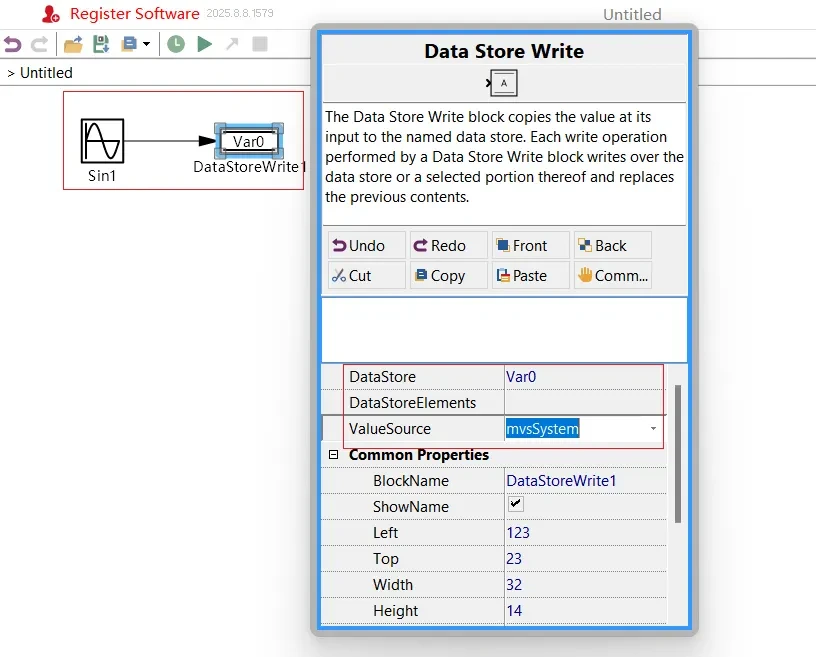
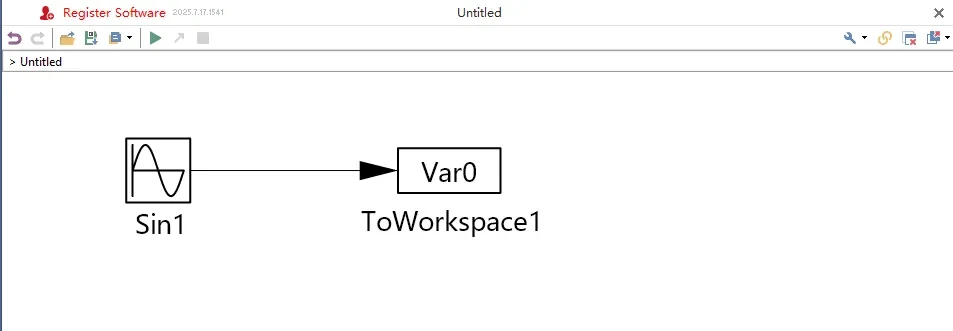
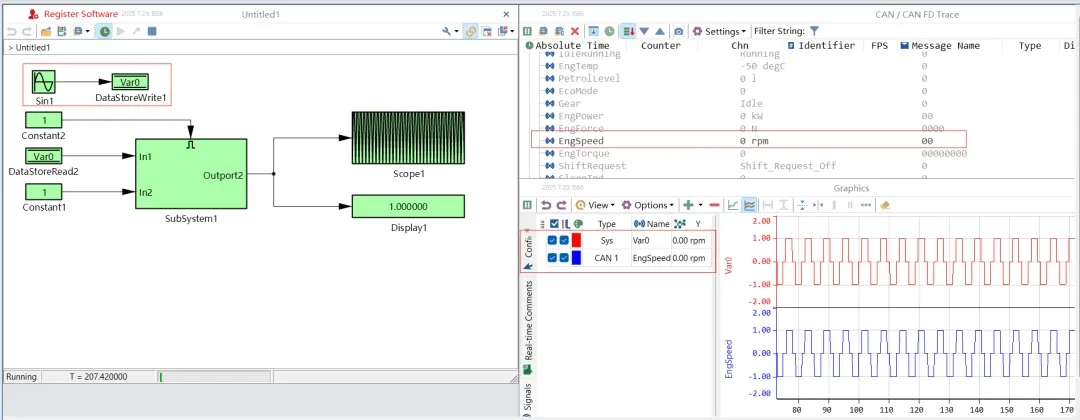
The model block diagram of the added components Sine Wave and DataStoreWrite, DataStoreWrite binding system variables (Var0 as an example), the Sine Wave and DataStoreWrite connected together, the realization of the system variable value is Sine curve changes.

DataStoreWrite Binding

2.2 Algorithmic processing of CAN signals

technical articles 20250828 35 TSMaster MBD

Simple CAN signal algorithm processing, example steps are as follows:

(1) Create a new TSMaster project and load the database (CAN_FD_Powertrain.dbc for example)

technical articles 20250828 36 TSMaster MBD

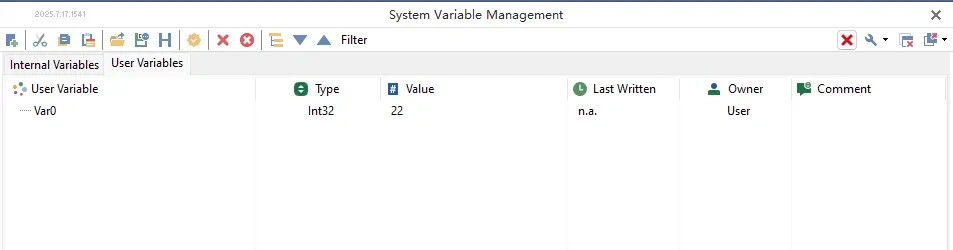
(2) Create system variable Var0

technical articles 20250828 37 TSMaster MBD

(3) Connect the system variable Var0 to the CAN signal (/EngineData/EngSpeed signal, for example) in the signal mapping, and select the mapping direction "from system variable to signal only".

technical articles 20250828 38 TSMaster MBD

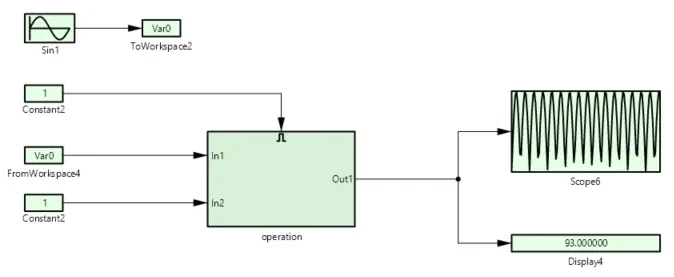
(4) Add the model block diagram, add Sine Wave and ToWorkspace components in the model block diagram, ToWorkspace binds the system variable Var0, Sine Wave connects to ToWorkspace to realize the Sine change of the system variable value, and at the same time, realize the Sine change of the CAN signal value.

technical articles 20250828 39 TSMaster MBD

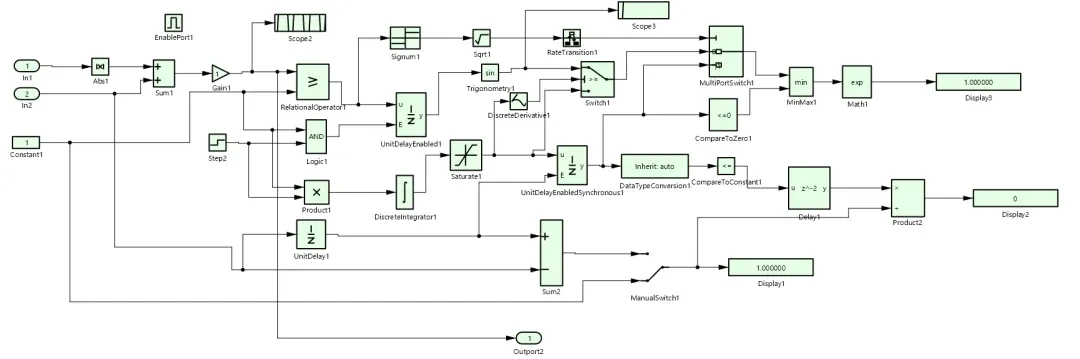
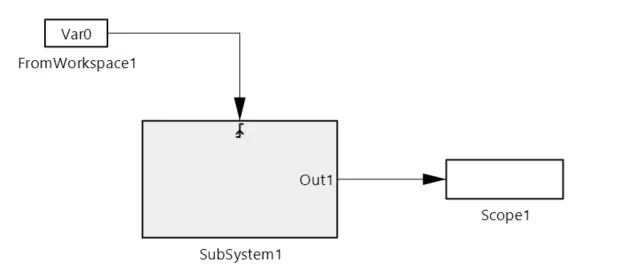
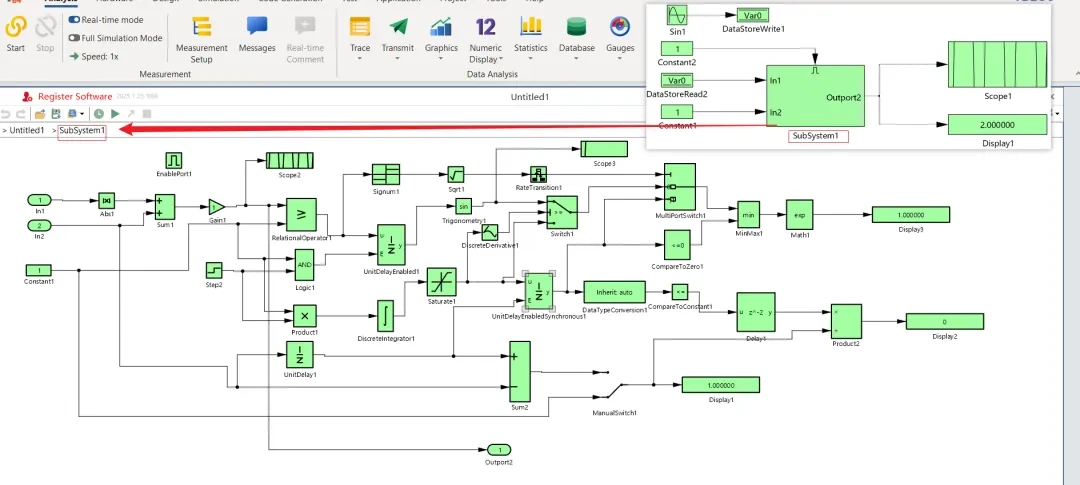
(5) Algorithmic processing of CAN signals: add subsystemoperation, use FromWorkspace to read the value of the system variable Var0 as input to the subsystem, and Constant as another input to the subsystem.

The algorithm modules that can be added to the subsystem are:

  • Calculus Operations: Integrator and Derivative
  • Discrete systems: Unit Delay, Delay, etc.
  • Logical and Comparison Components: Logical Operator (logical gates such as AND/OR/NOT); Relational Operator (comparison operators such as >, <, ==); Switch (conditional selection based signals), Multiport Switch (multiport selection)
  • Mathematical algorithms: Sum (summation), Product (product), Gain (gain multiplication), Abs (absolute value), etc.; Trigonometry (trigonometric functions, e.g., sin, cos); Min Max (extreme value operations); Exp (exponentiation), Log (logarithm), Sqrt (square root)

Adding the EnablePort group to a subsystem will, outside the subsystem, add Constant to connect to the EnablePort port can control whether to execute the current subsystem by modifying the value of Constant.    

technical articles 20250828 40 TSMaster MBD

  • Output: The Output port in the subsystem can be connected to any place for output

Through the above steps the CAN signal values can be processed in the model block diagram and then displayed in the form of graphical changes using Scope in the output module, or in the form of numerical changes through Display, or by using ToWorkspace and then writing to the system variables and then adding the system variables to the graphical window for observation. All the added algorithm-related components of the link can be added by adding the output module to observe the data changes at each stage in real time.

2.3 CAN signal edge detection

technical articles 20250828 41 TSMaster MBD

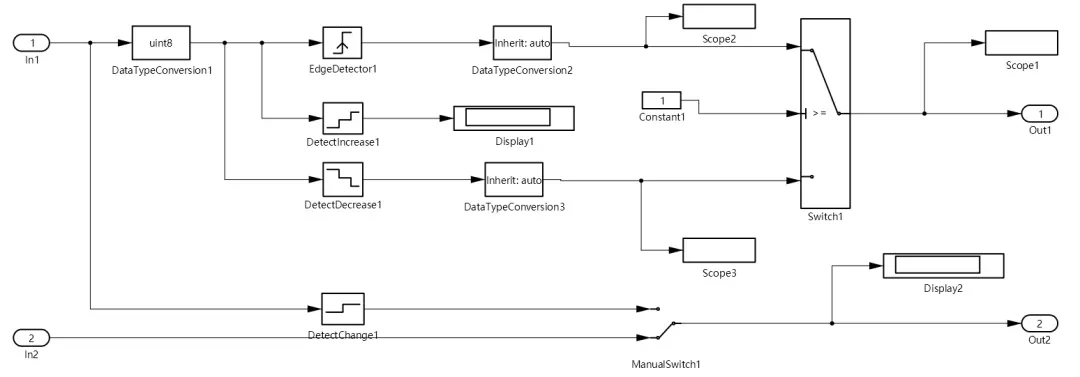
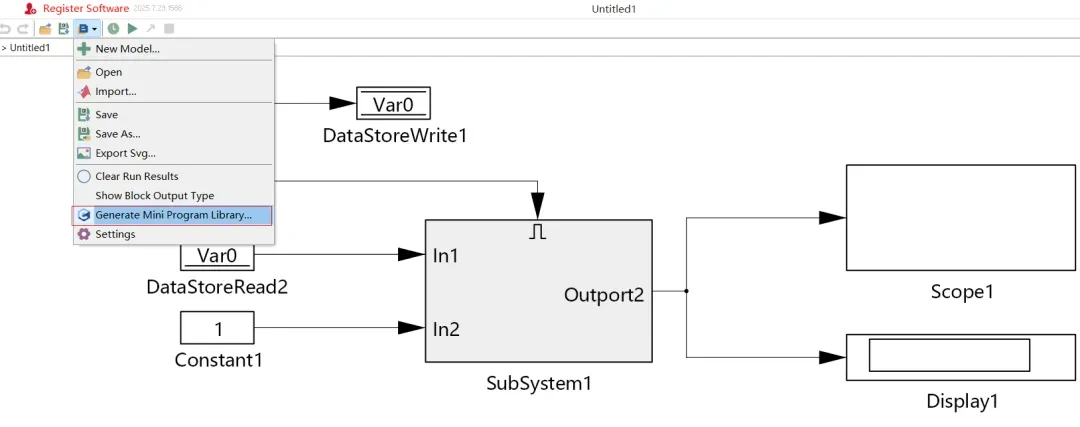
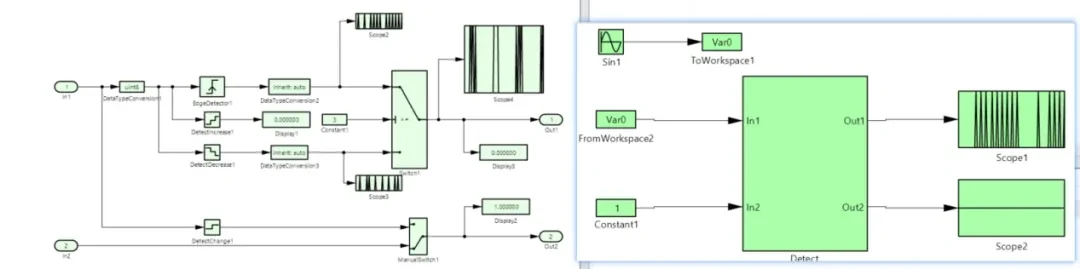
Add component DataStoreRead in the model block diagram, DataStoreRead binds the system variable to get the system variable value, and add the related edge component in SubSystem to observe the signal edge change:

  1. Edge Detector
  2. Detect Increase : Detect Increase, module outputs 1 (True), otherwise outputs 0 (False)
  3. Detect Decrease : Detect Decrease, module outputs 1 (True), otherwise outputs 0 (False)
  4. Detect Change : Detect any change, the module outputs 1 (True), otherwise outputs 0 (False)

The components in the sub-module are schematically shown below:

technical articles 20250828 42 TSMaster MBD

The output port of the edge detection component can be connected to Scope in the output module to display in the form of graphical changes or in the form of numerical changes through Display.

Edge detection is used in conjunction with Switch:

(1) The Edge Detector converts the signal type through DataTypeConversion and connects to the first input signal of Switch; the control signal of Switch connects to the Constant module (Constant value is 1); the Detect Decrease converts the signal type and connects to the third input signal of Switch; the module selects the output of the first input signal or the third input signal according to the value of the control signal. Detect Decrease converts the signal type and connects it to the third input signal of the Switch, and the module chooses to output the first input signal or the third input signal according to the value of the control signal.

Selectively outputs the falling edge detection result:

Since the control signal is fixed to 1, the Switch will always select the 3rd input (i.e., the output of Detect Decrease), and the final system is equivalent to a falling edge detector with data type conversion.

Redundancy Design Intent:

Although the general-purpose edge detection result of Edge Detector is connected (input 1), it is masked by fixing the control signal, leaving only the dedicated falling edge detection function of Detect Decrease.

2) Detect Change is connected to Manual Switch Input 1, and Constant is connected to Manual Switch Input 2 implementing a “manually controlled signal change monitor”.

Monitor mode:Output signal change detection results (change = 1, no change = 0);

Fixed output mode:Ignores the input signal and always outputs the preset Constant value.

2.4 Use of other components

There are other components utility components in the model block diagram, such as:

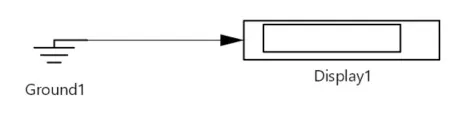
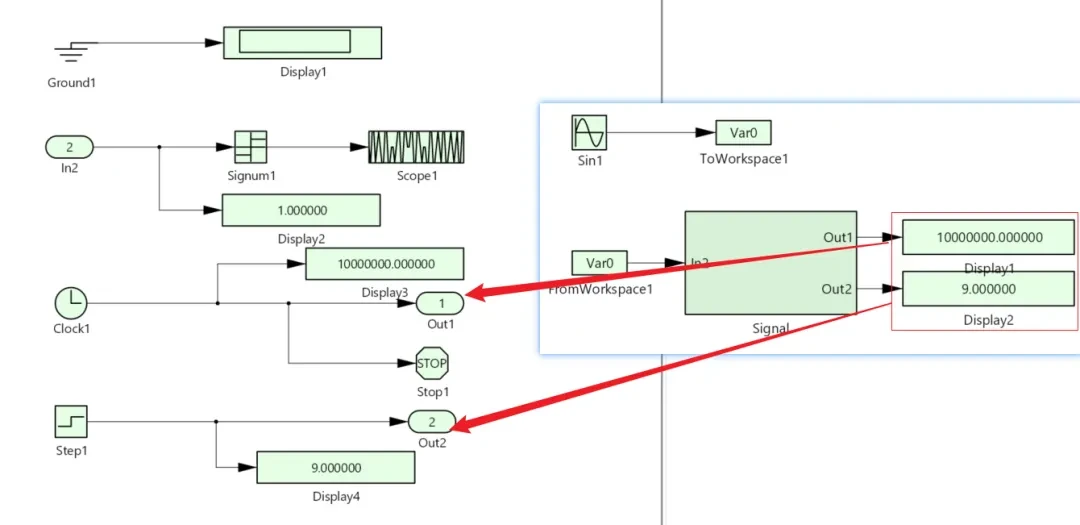
(1) Ground: The input signal is grounded to prevent warnings about unconnected input ports.

technical articles 20250828 43 TSMaster MBD

(2) Sign: Signal symbol judgment, in the need to understand the sign of the signal is the Sign component can be connected to the line.

technical articles 20250828 44 TSMaster MBD

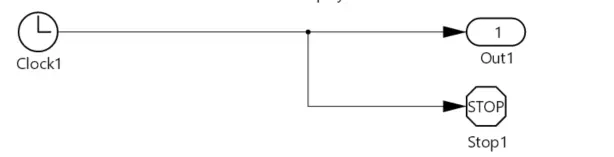
(3) Clock: Get the current module simulation time in real time.

(4) Stop Simulation: Simulation can be stopped immediately when the input signal is not 0.

technical articles 20250828 45 TSMaster MBD

(5) Step: You can control the signal to generate a jump from the initial value to the final value at a specified time.

technical articles 20250828 46 TSMaster MBD

(6) Control subsystem execution ports: Enable Port and Trigger Port.

By adding an Enable Port (or Trigger Port) to a subsystem, an additional input port is created outside of the subsystem, and the execution of the current subsystem is controlled externally by modifying the value of the signal connected to the port.

technical articles 20250828 47 TSMaster MBD
technical articles 20250828 48 TSMaster MBD

2.5 Applet library usage

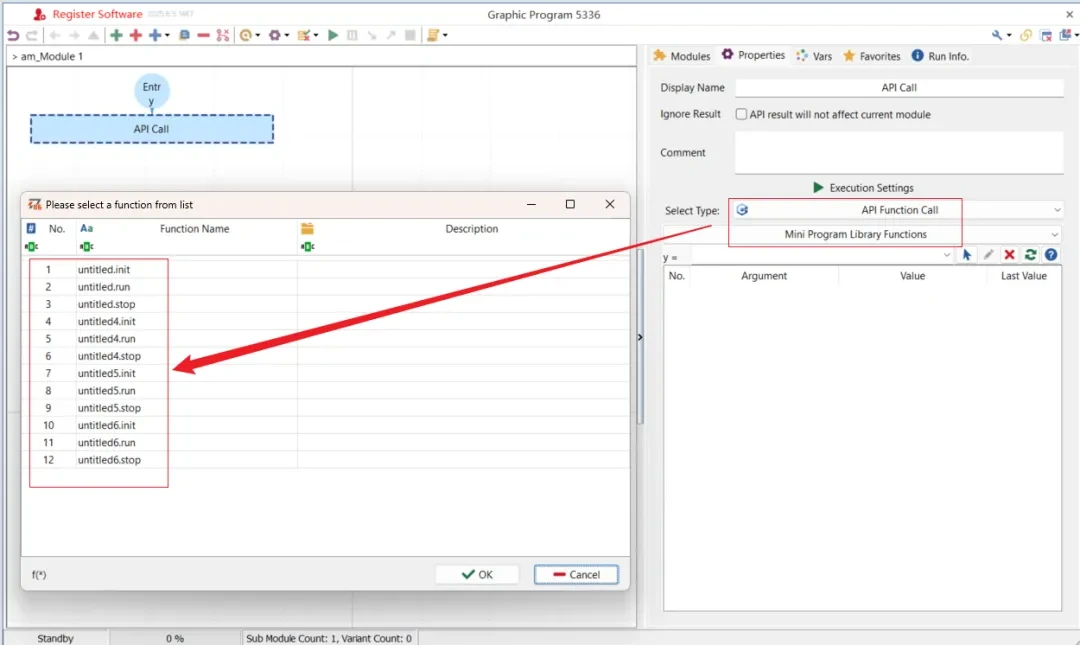
Model generation mp is called arbitrarily after generating mp, realizing the graphic program (or C applet) to run the model block diagram, and controlling the operation of the model block diagram more conveniently.

technical articles 20250828 49 TSMaster MBD

Adding a new graphical program, adding an execution unit binding API function call, selecting the applet library function, and using the run function can be implemented to run the model block diagram in the graphical program.

technical articles 20250828 50 TSMaster MBD

Sample Project Operation and Results

After the example project is built, the model block diagram is run sequentially in the graphics program.

The value of Sine Ware is assigned to the system variable Var0 in the signal input, and then the value of the system variable is assigned to the CAN signal through the configuration in the signal mapping, which is seen in real time in the graph, and the message changes are also seen in the Trace window.

technical articles 20250828 51 TSMaster MBD

CAN signal algorithm processing process will be Sine signal and constant module, Sine first absolute value processing, and then add the two and then gain processing and finally multiply, and then through the Output port output, connected to the Scope and Display display, you can add Output port in any position will be real-time data output observation.

technical articles 20250828 52 TSMaster MBD

In CAN signal edge detection detection, connect Output1 to the irregular signal output in the Switch (determined by the control signal); connect the other Output2 to the ManualSwitch, where Input is a constant 1 and all outputs are constant 1.

technical articles 20250828 53 TSMaster MBD

Other components in use in Input2 (SubSystem input connected to the Sine sine wave) connected to Sign, according to the sign of the signal obtained output: if the input is greater than 0, the output is 1; if the input is equal to 0, the output is 0; if the input is less than 0, the output is -1.

The Clock output is the real-time simulation time, connected to Output1, and the final result displayed at the end of the run is the simulation end time in the setup.

Step is set to step from 2 to 9, connecting to Output2, so the result of the final step is shown.

technical articles 20250828 54 TSMaster MBD

Mastering the TSMaster MBD module means you can seamlessly extend the efficiency benefits of model-based design from simulation to real-world testing and verification, dramatically compressing development cycles and improving system reliability. For a description of the components of TSMaster MBD, read on!The Complete Explanation of TSMaster MBD Modules: A Complete Practice from Model Building to Automation Testing..

Which feature of TSMaster are you most interested in? Or what problems have you encountered in practical applications?

Welcome to share your experience or questions in the comment section, any ideas or suggestions can also be comment section message interaction, will have the opportunity to win the TOSUN mystery gift bag Oh ~!

Tip:
1. Software download:
Click on the software download link below to download and install directly, beta version is recommended:

2. Software upgrades:
You can check for upgrades to the latest version within the software, provided that your computer has an Internet connection.

Note: TOSUN Technical Support Email:support@tosunai.cnWe welcome inquiries! (Company and contact information must be indicated)

发表回复

×
×

产品入口: 产品添加到购物车